13 How a page can look
No words. No words to describe it. They should have sent a poet.
- Ellie Arroway, Contact
This chapter shows what a page in Crystalline can carry besides paragraphs, whoever writes it, you or the agent. A page here is anything Fluid shows you to read: an engram, or a reflection in a domain’s Reflection (Chapter 12). Both are plain markdown, and Crystalline adds a few elements on top: callouts, status labels, task lists, diagrams, math, footnotes and colour swatches. Each section shows the raw markdown and where you’ll meet it.
Ellie Arroway ran out of words a long way from home. A page runs out of them sooner: three services passing a payment along, five options weighed on the same four points, a step you can’t take back. Those you show; everything else still reads best as a sentence.
13.1 When a sentence is not enough
The rule comes from the skill the agent writes pages with: an element earns its place when it does a job prose can’t. A diagram is there to explain an order or a branch, a table to line up a comparison, a callout to stop the reader before a risk. None of them is there to make a page look rich, and a page with no diagram and no callout is often the right page. Open the file in a plain editor or on GitHub and every element here still reads fine as raw text.
Here’s how that looks when you hand the agent a page to write. The new on-call engineers keep asking how a deploy of the payments service works, and engineering has its Reflection switched on:
You:    The new on-call engineers keep asking how a deploy works.
        Write them a page in engineering's Reflection.
Agent:  Read the pact first: the pages are for engineers in their
        first month, one diagram per page at most. "Deploying
        payments" is up. The payment flow is a sequence diagram,
        because three parties hand a job along in a fixed order. The
        deploy windows are a table with a verdict on each row. The
        drain step carries a caution, since a job the queue drops
        doesn't come back. The rest is prose.
Most samples below come from that page, and most figures show it in Fluid.
13.2 Callouts and folding
A callout is a quote whose first line names its kind in square brackets. There are six kinds: NOTE for background that helps but isn’t needed, TIP for a shortcut, IMPORTANT for a prerequisite the reader must not miss and WARNING or CAUTION for a risk. The sixth, DETAILS, is a neutral one for long reference detail or optional steps. The kind takes any letter case. A title can follow on the same line; without one, the title is the kind’s own word. An unknown kind such as [!DANGER] stays a plain quote.
A sign right after the closing bracket folds the callout: - starts it closed and + starts it open. DETAILS without a sign starts closed, and every other kind without a sign doesn’t fold. A folded callout opens by itself when a link leads to a spot inside it or when you pick a thread whose quote sits in it, and on paper every callout prints open.
> [!CAUTION] Drain first
> A deploy that changes job schemas drops every job still in the
> retry queue, and a dropped job doesn't come back.

> [!DETAILS]- Rollback steps
> 1. Stop the queue workers.
> 2. Roll the payments service back to the last release.
> 3. Start the queue workers again.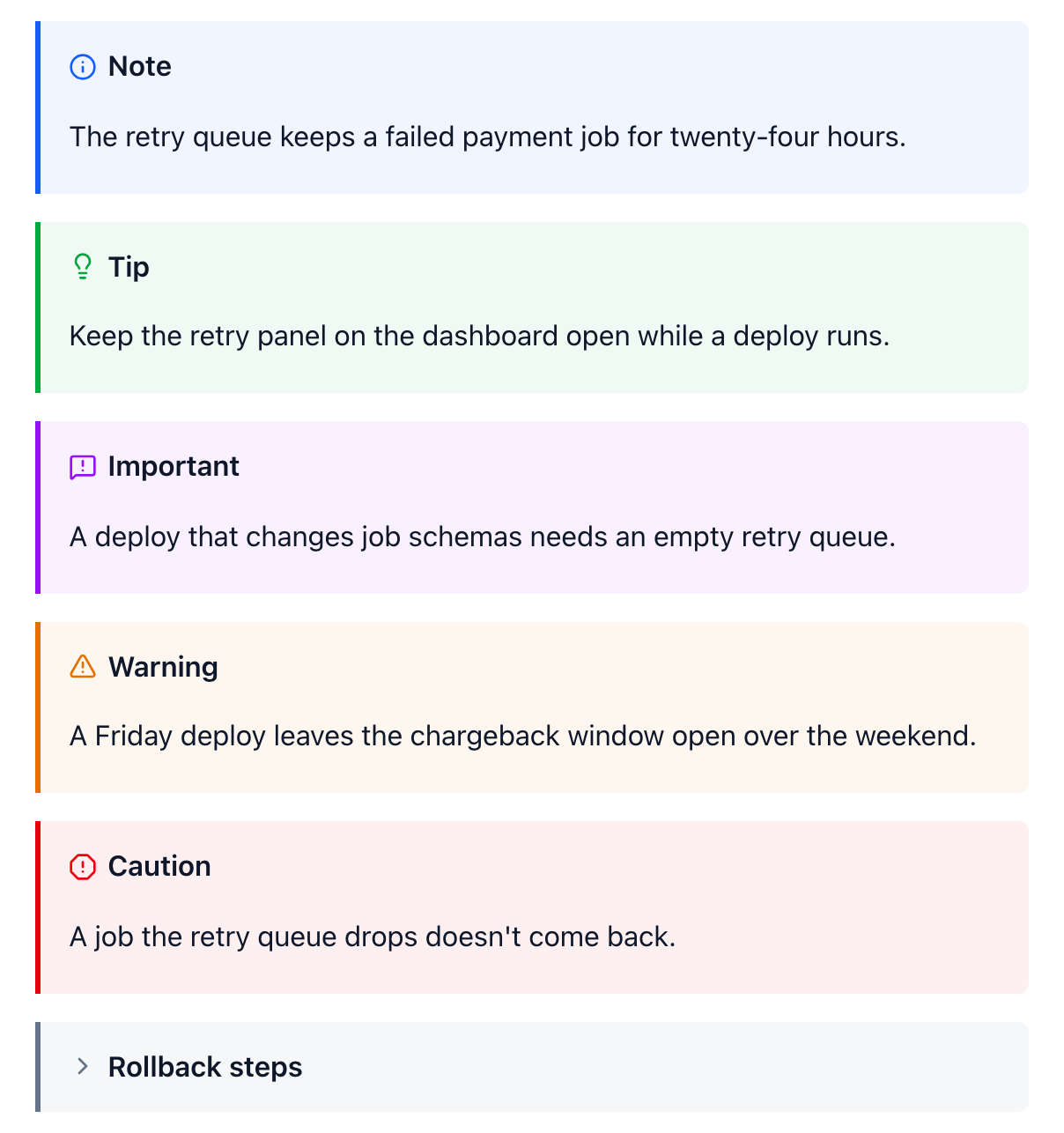
Use one or two per page, on top of any caution a risky step needs. Never put two in a row and never put a callout inside a callout. Crystalline folds any kind you ask it to, but leave a warning or a caution open: a risk the reader has to open is a risk the reader misses.
13.3 Status labels
A status label is a small coloured word inside a sentence or a table cell: :status[In review]{blue}. The colour is one of six (grey, blue, green, yellow, red and purple) in any letter case. Leave out the braces and the label is grey, and so is a label with any other colour. A label always carries a word, because colour alone isn’t a signal (a black-and-white printer or a reader who can’t tell red from green loses it). It fits best as a verdict in a comparison table or as the state of a plan:
| When | Why | Verdict |
| --- | --- | --- |
| Monday to Thursday morning | The whole team is in | :status[Go]{green} |
| Thursday afternoon | Fewer people to call | :status[With a second person]{yellow} |
| Friday | The chargeback window outlives the weekend | :status[Never]{red} |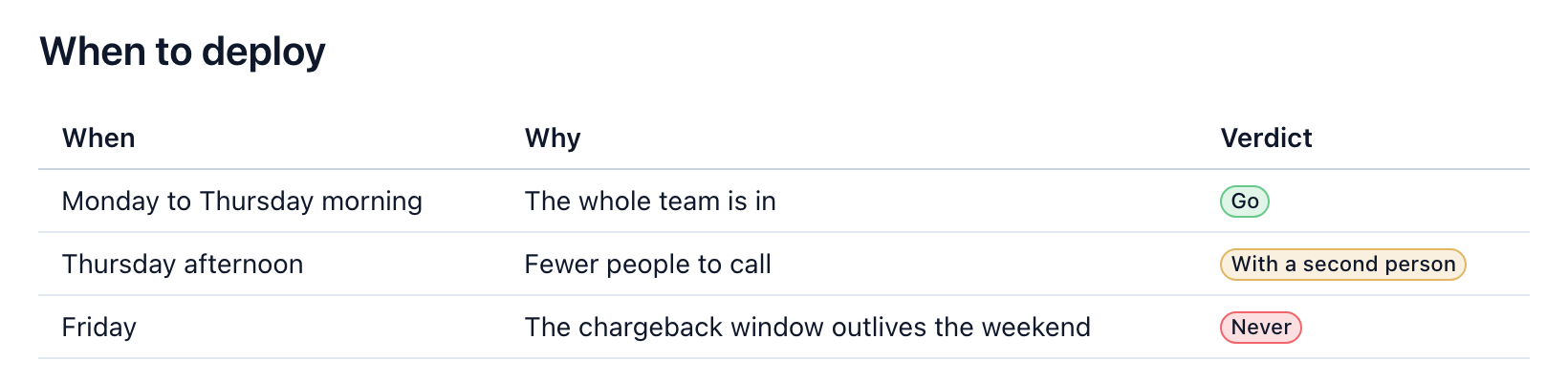
13.4 Tables and task lists
Tables are the plain pipe tables GitHub uses. Reach for one when you compare three or more options on the same points, one row per option, or when a list of attributes (a name, an owner, a port, a limit) would otherwise become a long run of bullets. The editor inserts one at the size you pick, and with the caret inside a table its toolbar adds a row below or a column after, deletes either, aligns a column and lines every pipe up with Prettify table.
A task list is for things people act on and tick off. [ ] is open, [x] is done and [~] means the item doesn’t apply: it’s drawn struck through and never toggles.
- [x] Drain the retry queue
- [ ] Roll the payments service
- [ ] Roll the queue workers
- [~] Migrate the job schemas (none in this release)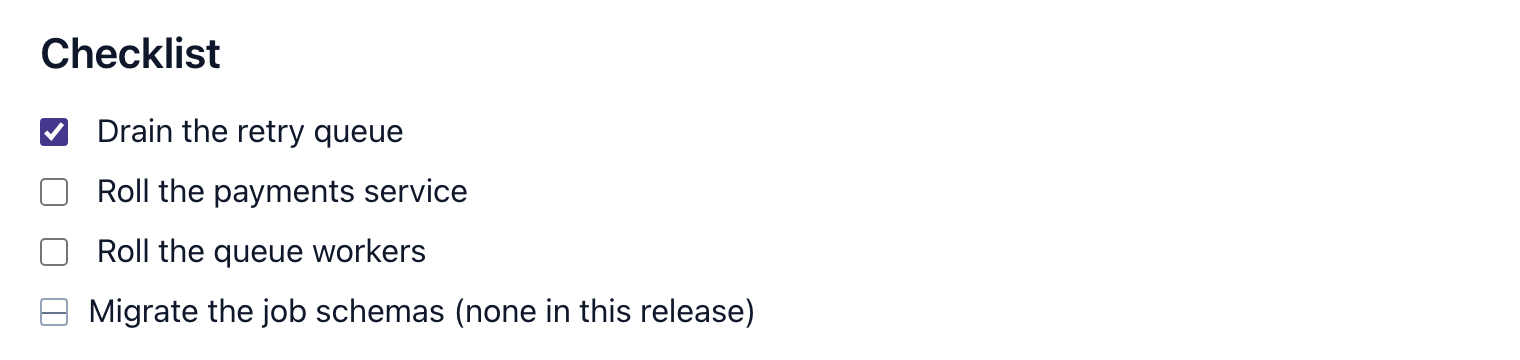
Anyone who may edit a page ticks a box right on the reading page, and the click changes that one line of the file. A reader without edit rights sees the box disabled, with the reason as its tooltip, and a page somebody has open in the editor gets the tick live. On a reflection a tick alone isn’t feedback: it doesn’t send the agent back to the section, while a real edit next to it does. Task items are never observations either, so a fact doesn’t belong in one.
13.5 Diagrams and math
A mermaid code block draws a diagram, in light and dark, on a phone and on paper. Keep it small (about a dozen nodes), put a sentence before it that says what it shows and leave the colours to the page, which sets them for every theme. A label with special characters such as brackets or a colon goes in quotes, A["Retry (3x)"]. The Insert menu’s Diagram submenu has starters for sixteen kinds in three groups (Everyday, Planning and product, Technical), and for a technical page the first five of the Everyday group carry most of the load. A flowchart shows a process that branches and a sequence diagram the messages between parties; a state diagram shows states and the moves between them, and a class or an entity relationship diagram shows a data model.
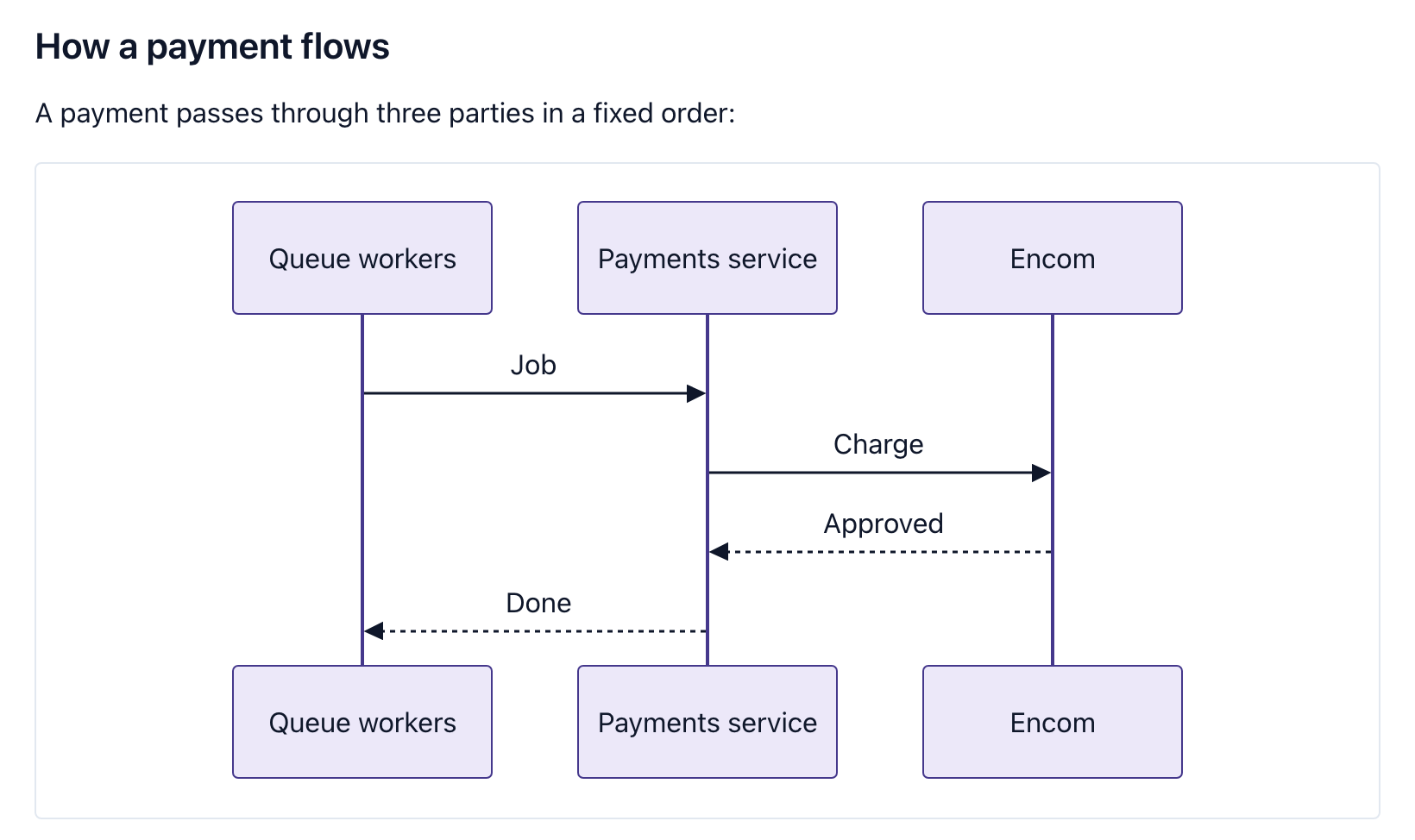
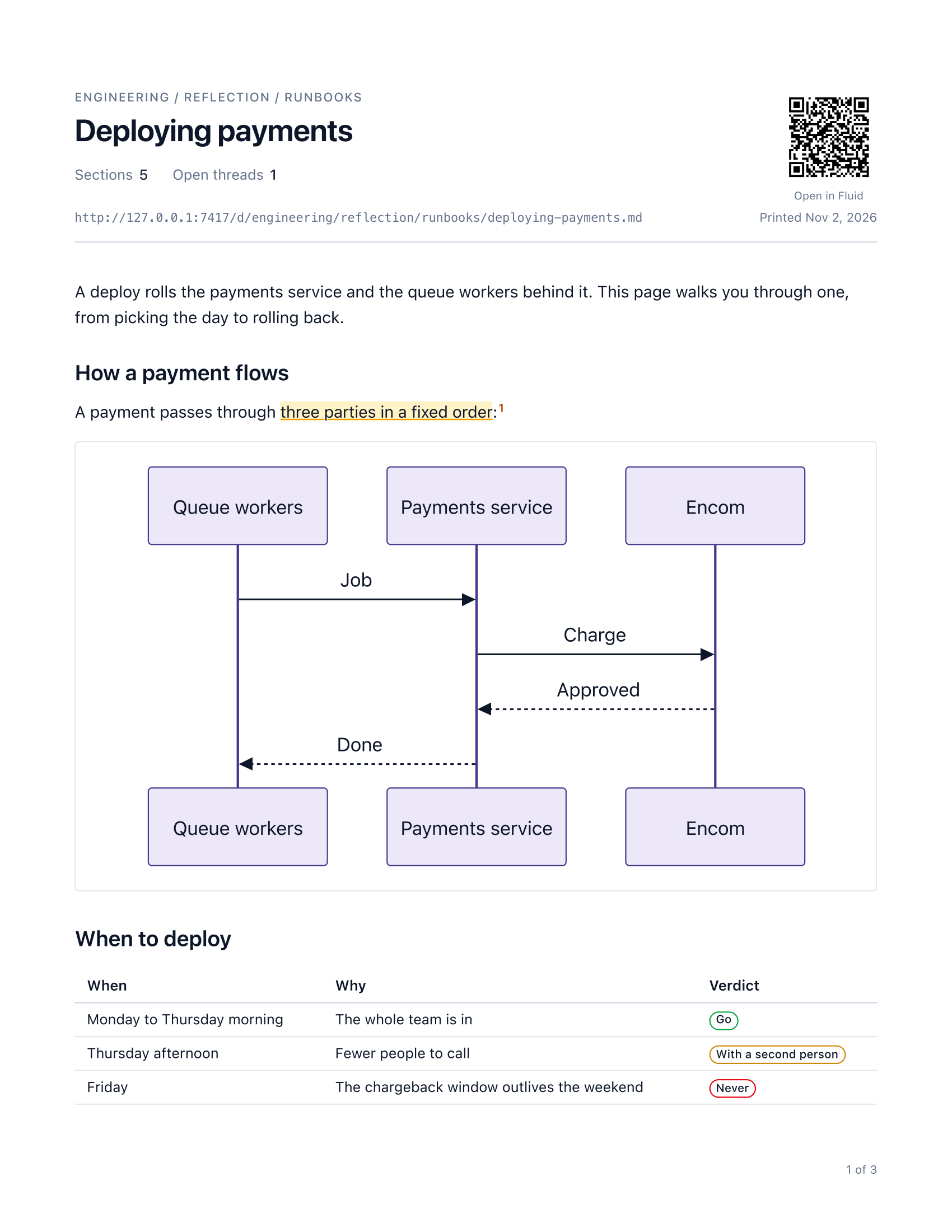
A payment passes through three parties in a fixed order:

```mermaid
sequenceDiagram
    participant W as Queue workers
    participant P as Payments service
    participant E as Encom
    W->>P: Job
    P->>E: Charge
    E-->>P: Approved
    P-->>W: Done
```
Math is for a formula the reader has to read, not for a number in a sentence. Inline, a formula goes in $`a^2`$ or in $$a^2$$ on one line. A block goes between two $$ lines or into a math code block, one formula per block. A single dollar sign is always just a dollar, so a price like $5 stays text.
A job that keeps failing is dropped at $`t_{job} + 24h`$.

$$
t_{drop} = t_{job} + 24\,h
$$
13.6 Footnotes, code and colours
A footnote takes a caveat or a source out of the sentence it would break. The reference gets a small link in the text and the note sits in a list under a hairline at the end. On a reflection, keep the reference and its note in the same ## section, because Fluid shows each section on its own; the editor’s Footnote entry puts the note there for you. A reference without a note stays as its text.
The queue drops a job after twenty-four hours.[^1]

[^1]: The cutoff mirrors Encom's chargeback window, so it isn't the team's to tune.
Every code block on a reading page has a Copy button at its top right. Inline code that holds a single colour code, like #D1242F, gets a small square of that colour in front of it, and rgb(...) and hsl(...) work too.
The retry panel on the dashboard turns `#D1242F` once a job passes the cutoff.
13.7 Links
An engram links another engram by its title, [[Encom chargeback window]], and Chapter 7 covers those links and the completion that writes them. A reflection doesn’t link that way: on a reflection [[...]] stays plain text, and its editor has no Wiki link button and no title completion. An address works on both kinds of page, crystalline://engineering/encom-chargeback-window, and when the domain is renamed, Crystalline spells it with the new name. Plain links to the web are ordinary markdown, and on paper they print their address after their words.
Why the cutoff is a day: [[Encom chargeback window]].
The same engram from a reflection: [the chargeback window](crystalline://engineering/encom-chargeback-window).
Encom's own rules: [Encom for developers](https://developer.encom.example).
13.8 Images and files
An engram shows its attachments, the files under the domain’s assets/ folder that Chapter 7 describes. A reflection keeps files of its own under reflections/assets/ (the same file types, the same size limit). It links them relative to its own folder. A reflection never embeds an engram attachment: copy the file into reflections/assets/ and link the copy. You add a file in the editor by pasting it, dragging it in or attaching it.
A fragment on the image’s address places and sizes it: left or right floats it, center centres it and full takes the whole width. A width goes beside it, w=50% or w=320 (pixels), after a comma. With the caret on an image the editor’s Image format menu writes the fragment for you. Every other markdown renderer ignores it and still draws the picture.
That line sits in a reflection one folder down, in reflections/runbooks/; on an engram the same image is assets/retry-flow.png#right,w=50%.
13.9 Writing it in Fluid
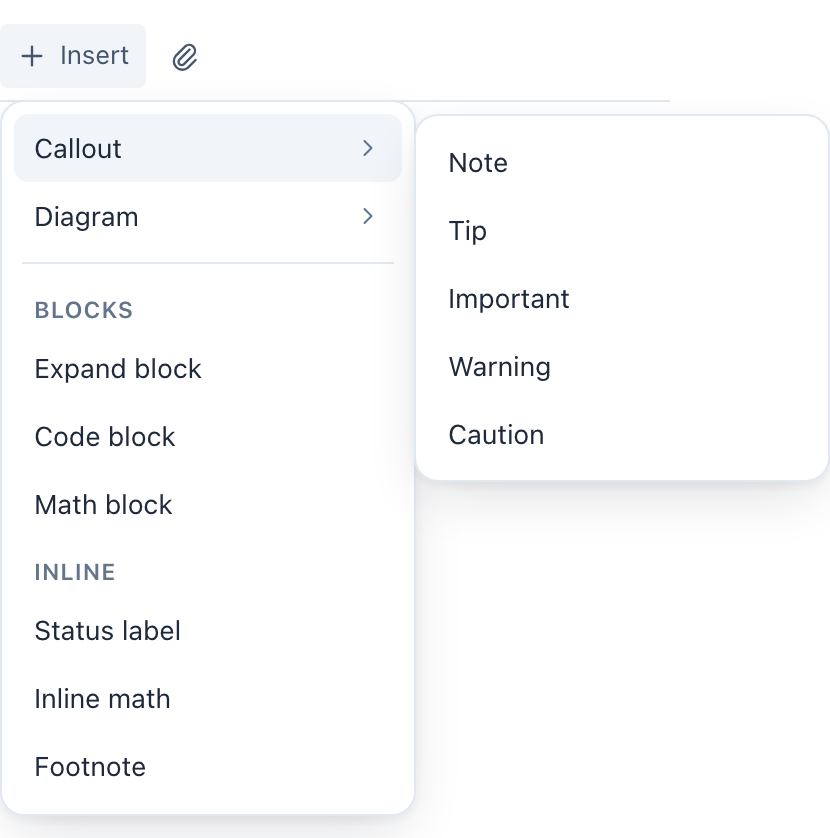
Engrams and reflections share one editor. The toolbar carries the everyday formatting and a size picker for a new table, and everything else waits in the Insert menu, from callouts and diagram starters to status labels, math and footnotes. Type / at the start of an empty line and the same list opens at the caret, tables and task lists included; keep typing to filter it, so /cau finds Caution, and so does /danger.
Once an element is in, the toolbar follows the caret. Inside a callout it offers the kind and three buttons, Starts open, Starts closed and Does not fold. Inside a status label the toolbar offers the six colours. Away from the line you’re typing on, callouts, labels, swatches and math show the way the reading page will draw them, so the page takes shape while you write.
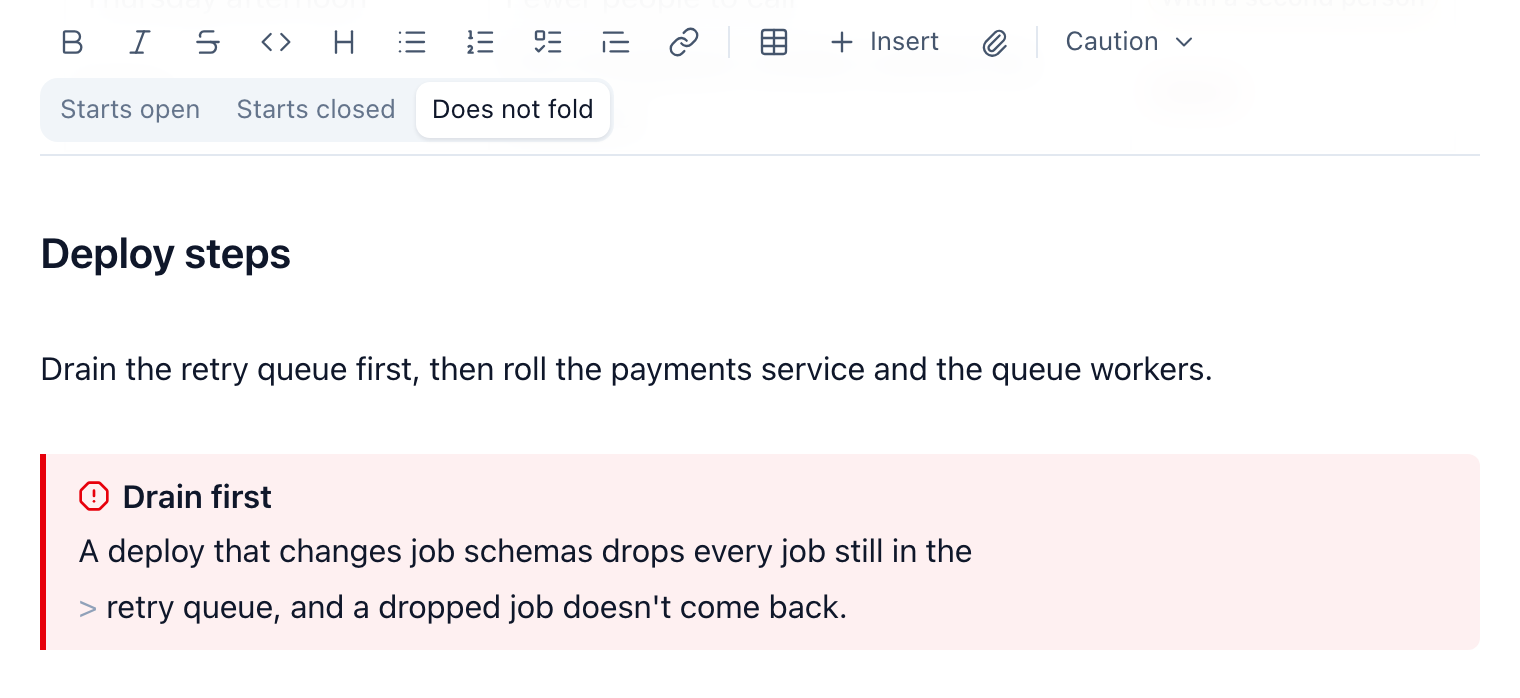
Say you add the deploy page’s caution yourself. On the empty line under the drain step you type /cau and press Enter, and a caution lands with its placeholder text selected. You type the warning over it, then go back to the marker line and add the title, Drain first. The toolbar now shows Caution and Does not fold pressed, and you leave it like that, since a caution stays open.
13.9.1 Pasting from another app
Copy a page from a wiki, a web page or a word processor and paste it into the editor, and Fluid turns the HTML into clean markdown:
| From the other app | Becomes |
|---|---|
| Headings, emphasis, lists, task lists, code blocks | the same in markdown |
| Tables and links | tables and links |
| Info, note, tip and warning panels | callouts of the nearest kind |
| Expand sections | a folded DETAILS callout |
| Status lozenges | status labels in the nearest colour |
| Images | a link (attach the file yourself) |
| Anything else | plain text, never HTML |
Scripts, styles and unsafe links such as javascript: ones are dropped, and a dropped link keeps its text. To paste plain text instead, use Cmd-Shift-V (Ctrl-Shift-V on Windows and Linux).

13.10 On paper
Print an engram or a reflection and you get a proper printout, laid out for paper. Every reading page has Print view in its More actions menu, which opens the browser’s print dialog, and the browser’s own print command gives you the same sheet. To get a PDF, pick the PDF destination in that dialog (Save as PDF in Chrome). A reflection also leaves as a file: Download as Markdown in the same menu hands you the page as plain markdown, named after its file and without Crystalline’s bookkeeping in the frontmatter.
The first page opens with a title block and a small QR code of the page’s address, so whoever holds the paper finds the live page with a phone. The sheet is always light, even when you print from dark mode, and menus and buttons stay off it. Links to other sites print their address, folded callouts print open and a heading stays with its text; Chrome adds a running header and footer with the page numbers.
The two kinds of page end differently. An engram ends with a short Related section: the engrams that link to it and its attachments. A reflection prints its open threads as numbered notes at the end, with a small matching number after each quoted passage in the text, so the deploy page on the table at a review carries the questions people still have about it. Resolved threads stay off the paper.
13.11 How agents choose
The agent picks its elements from a skill that ships with Crystalline, crystalline-presentation, which it uses whenever it writes a reflection or the pact, works the reflect queue or writes an engram that a table or a diagram would make easier to use. A few shapes need their element every time, because a list or a paragraph isn’t enough for them. Messages between two or more parties in a fixed order get a sequence diagram, even for three steps. A process that branches on a decision gets a flowchart, and states with the moves between them a state diagram. Three or more options compared on the same points get a table, one row per option, with a verdict column of status labels when the source gives a verdict. A step that can’t be undone gets a warning or a caution inside the section that describes it, right before or after the step and never in the lead above the first ## heading. Before each section the agent checks those shapes in turn, and when none applies it writes prose.
Beyond the required ones the skill is strict about restraint: one or two callouts per page, one diagram per idea and labels in the reader’s words. Feedback works the same way: when somebody comments “I don’t follow” on a passage, more words aren’t always the answer, and a flow that’s hard to follow in prose is often easy in a diagram. On an engram, a table of settings or a diagram of a flow is welcome when it makes the knowledge easier to find or to use. Observations and relations stay top-level bullets there: inside a callout or a quote they aren’t indexed.
The pact has the last word. Its Presentation part (Chapter 12) says which diagrams, callouts, tables and labels help this domain’s readers, and where the pact and the skill differ, the pact wins. A pact that says no diagrams means no diagrams, even where the skill would require one, and a pact that asks for plain text and tables only gets its warning before an irreversible step as a sentence. A new pact starts with a Presentation part to fill in, and the agent reads the pact before it writes a page.
Crystalline checks these elements outside code blocks and inline code and reports three findings, listed with every other code in Chapter 26. Q006 is a warning for a status colour outside the six, which renders grey; Q007 is a warning for an unknown callout kind, which renders as a plain quote; Q008, for engrams only, is an info finding for an observation or relation inside a callout or any other quote, where it isn’t indexed. The receipts of write_engram, edit_engram and write_reflection carry them as markdown_findings, a list of {code, severity, message, line} that is there only when something needs fixing. The skill tells the agent to fix each one at its line and write again. crystalline verify reports them too, and the engram editor shows them with its other findings. Since 0.28.0 crystalline verify --strict fails on Q006 and Q007, so a domain that passed in CI before can fail now until the colour or the kind is fixed. An agent that reaches Crystalline only over MCP reads the skill with the skills tool.
On GitHub the five kinds without a title render as GitHub alerts, while a callout with a title, a folded one and DETAILS show as plain quotes with the marker as their first line. A status label reads as its raw text and a swatch as plain inline code. [ ] and [x] render as checkboxes, while [~] stays literal. Diagrams, math and footnotes render on GitHub too. GitHub also reads two single dollar signs on a line as math, which Crystalline never does. HTML comments such as <!-- checked with the payments team in March --> stay in the file but don’t show on the page; the editor shows them on the line you edit.
A page with three or more ## sections gets an outline, On this page, with no syntax needed. On an engram it lists the ## and ### headings and marks the section you’re in; on a reflection it lists the ## sections only, beside the threads.
Engrams and reflections are plain markdown with a few elements on top, all of which read fine as raw text: callouts (six kinds, folded with - or +), status labels in six colours that always carry a word, task lists with a not-applicable [~], mermaid diagrams, math, footnotes, code blocks with a Copy button and colour swatches. An element earns its place when it does a job prose can’t, and a page without any is often the right page. Fluid’s one editor inserts them from the Insert menu or a / at the start of a line, previews them as you type and turns a page pasted from a wiki or a word processor into clean markdown; Print view puts a page on paper or into a PDF with a QR code back to the live page. Agents choose their elements with the crystalline-presentation skill, where the pact’s Presentation part has the last word. The write receipts and crystalline verify report an unknown colour or callout kind.